100 Indicator Icons Set: Making Smarter Choices for Clear Communication
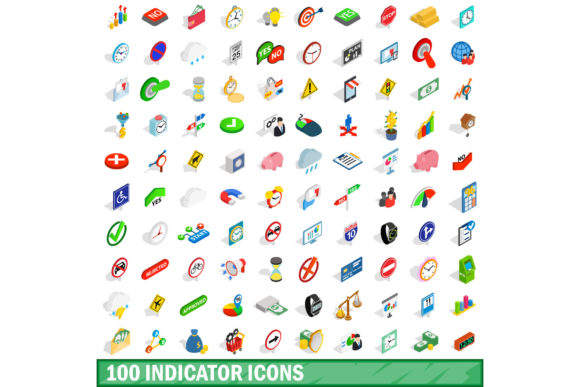
If you’ve ever tried to add visual cues to a dashboard, status report, or user interface, you know how quickly a small set of icons can feel limited. You choose a few arrows, a checkmark, a warning triangle—then realize you still need icons for “pending,” “in progress,” “on hold,” “error,” “success,” “info,” “low battery,” “syncing,” “offline,” and a dozen more states. That’s exactly where a 100 Indicator Icons Set becomes useful. It gives you a ready‑to‑use library of visual signals, so you don’t have to hunt for each symbol or design them from scratch.
But having 100 icons in one package doesn’t automatically make your project better. People often jump into buying or downloading these sets without checking what’s inside, how they’re built, or whether they actually fit the purpose. The result can be inconsistent visuals, wasted time, or even confusing communication. Let’s walk through the common pitfalls and, more importantly, how to avoid them.
Assuming All Icon Sets Are the Same
One of the first mistakes is treating any “100 indicator icons set” as interchangeable. You see a thumbnail with small colorful symbols and think it covers everything. But the details matter more than the count.
Check the file formats early
If you’re designing a web interface, you likely need SVG or PNG. For a presentation, high‑resolution PNG or vector EPS might be sufficient. Some sets only offer low‑resolution raster icons that look blurry when scaled. Others provide layered vector files that you can edit color, stroke width, and size. Always confirm the formats before you pay or download. A set that lacks the format you need will force you into extra work—or a second purchase.
Look at the style consistency
Indicator icons often need to work together in a line or a grid. If one icon has a filled circle, another a thin line, and a third a rounded square with a gradient, the visual rhythm breaks. A good 100 indicator icons set maintains a unified style: same stroke weight, same corner radii, same level of detail. Before you commit, scan the set for visual harmony. A few sample icons may look fine, but the full collection might include odd‑ones‑out that clash with your brand or design language.
Choosing Icons for the Wrong Audience or Context
Icons carry meaning, but that meaning depends on context. A green upward arrow might be “increase” in a financial dashboard, but in a health app it could imply “improvement.” A red exclamation mark could be “caution” in some settings and “error” in others. Using the wrong symbol confuses viewers.
Matching icons to user expectations
If your audience is experienced professionals (like project managers or data analysts), they expect standard symbols: a gear for settings, a magnifying glass for search, a stopwatch for timing. For a general consumer app, you might want more intuitive or friendly versions. A 100 indicator icons set that leans heavily toward industrial or technical symbols may not work for a casual lifestyle app. Review the category breakdown: does it include common UI indicators (loading, success, warning, info) as well as domain‑specific ones (IoT signals, equipment status, traffic lights)? Pick a set that aligns with the mental models of your users.
Consider the cultural and industry norms
A hand pointing up might mean “direction” in some cultures but can be seen as impolite in others. Similarly, color associations vary: red for “danger” is common, but red for “stop” in one context and “hot” in another matters. If your project reaches a global audience, choose a set with neutral, universally understood symbols and avoid ambiguous gestures or color‑only indicators.
Overlooking Semantic Gaps in the Set
A 100 indicator icons set sounds comprehensive, but it may still leave you without the exact icon you need. Many sets fill the count with slight variations of the same concept—for example, ten different arrow styles but only one “pause” icon. You end up struggling to find a symbol for “scheduled” or “cancelled.”
Map your needs before you buy
List the specific indicator states your project requires: active, inactive, error, warning, success, pending, processing, complete, offline, online, new, updated, etc. Then compare that list to the set’s content table. Don’t rely on the product title or thumbnail. Some sellers show only the most attractive icons, hiding missing ones. If the set lacks critical states, you’ll have to supplement with icons from other sources, which rarely match in style—leading to a messy, unprofessional look.
Prioritize sets with editable vectors
When you need a missing icon, you can often modify an existing one if the file is a vector. With SVG or AI files, you can rotate, flip, combine, or adjust elements to create a new indicator that stays consistent. Avoid sets that only offer flat PNGs—modification is nearly impossible without degrading quality.
Ignoring Scalability and Resolution
Icons designed for a 16×16px toolbar won’t look good when blown up to 64px for a hero section. Conversely, icons meant for large screens may become illegible when reduced. A 100 indicator icons set that doesn’t specify size ranges or offer multiple resolutions will cause trouble.
Test the extremes
If you plan to use the icons in responsive layouts, check how they behave at very small and very large sizes. Thin strokes disappear at 12px. Complex details become muddy. The best indicator sets are built with simplicity: clear silhouettes, generous padding, and bold shapes that read well at any size. Look for sets that mention “retina ready” or “responsive scaling.” Also verify that the set includes vector files so you can scale without pixelation.
Grid alignment
Indicators often sit inside tables, status bars, or notification badges. If the icon’s bounding box isn’t aligned to a pixel grid, it may appear slightly blurry or off‑center when placed next to text or other elements. A professional set usually includes icons aligned to a common grid (like 24×24 or 32×32 with proper padding). This small detail saves hours of manual tweaking later.
Mistakes in Applying Icons to Real Projects
Even a perfect set can be misused. Common application errors include using too many icons in one view, pairing them with contradictory colors, or placing them where users don’t expect interaction cues.
Avoid icon overload
When you have 100 indicators at your disposal, it’s tempting to use a different symbol for every subtle nuance. But too many icons create visual noise. For a dashboard, limit the distinct indicator shapes to what the user can recognize at a glance—usually 5 to 7 main states (e.g., success, warning, error, disabled, in progress). Group less critical variations under text labels instead. Your 100 indicator icons set can serve as a palette, but you don’t need to use all of them.
Match icon colors to your system, not the set’s default
Many sets come pre‑colored (green for success, red for error). While that’s often convenient, your own brand or product may use different color semantics. Make sure you can change colors easily. Vector sets allow recoloring in seconds; sets with embedded colors in raster format are inflexible. If you use a set that only offers colored PNGs, you might be stuck with mismatched tones. Always verify that the icons are either monochromatic (stroke‑only) or fully editable.
Overlooking Licensing and Usage Terms
This is one of the most overlooked aspects. A 100 indicator icons set may be sold under a license that restricts commercial use, limits the number of products you can use it in, or requires attribution. Ignoring these terms can lead to legal trouble or unexpected costs.
Check the license before downloading
Look for “commercial use allowed” explicitly stated. Some free sets are only for personal projects. Paid sets often have a standard license covering one application, but if you are a freelancer building multiple client projects, you might need an extended license. Read the fine print. Also, note whether the license allows you to modify the icons and use them in derivative works—crucial if you need to change colors or combine icons into new symbols.
Avoid attribution pitfalls
Requiring credit may be acceptable for a blog post, but in a professional mobile app or a client deliverable, attribution is often impractical or unwanted. Choose sets that do not require attribution, or plan to purchase a license that waives it. This small upfront check prevents rework and ensures a clean final product.
What to Do Before You Commit
Before making a decision, create a short checklist:
- Format: SVG, EPS, AI, or PNG in required resolutions?
- Style: Do all icons share consistent stroke weight, corner style, and detail level?
- Coverage: Does the set include at least 20 of the exact indicators you need?
- Scalability: Can they be resized without loss, and are they pixel‑grid aligned?
- License: Is commercial use permitted? Is attribution required? Can you modify?
- Editable colors: Are the icons single‑color or easily recolorable?
If you can answer “yes” to most of these, the 100 indicator icons set is likely a solid choice. If not, keep looking—the wrong set will cost more in time and frustration than the price difference.
Better Approaches to Choosing and Using Indicator Icons
Instead of treating the set as a one‑size‑fits‑all solution, view it as a resource you can curate. Download the full set, but only use the ones that genuinely improve clarity. Create a subset of 20–30 core indicators that match your design system. Standardize color and size rules in your style guide so every icon feels part of the same family, even if you later add custom ones.
For example, a project management tool might select only these from a 100 indicator icons set: a green check for “completed,” a blue circle for “in progress,” a yellow hourglass for “pending,” a red octagon for “blocked,” and a gray dash for “not started.” That’s five icons covering the main workflow. The remaining 95 icons in the set are still available for secondary features like “subtracted,” “added,” “export,” “import,” and “archive.”
When you need an icon that isn’t in the set, use a vector editor to derive it from a similar shape. If the set provides consistent stroke lines and aligned grids, you can often create a missing “skipped” indicator by rotating an existing “pause” symbol or merging two simple shapes. This approach keeps the look uniform without requiring a second icon set.
Final Thoughts
A 100 indicator icons set can accelerate your design process and improve communication—if you choose wisely. The biggest mistakes come from assuming quantity equals quality, ignoring format and style details, and failing to match icons to real user needs. By checking the points outlined here, you avoid awkward mismatches, licensing problems, and costly revisions.
Remember that the best icon set is the one you don’t have to fight. It integrates smoothly into your workflow, reads clearly at any size, and lets you focus on the message you’re communicating. Whether you’re building a dashboard, an app, or a presentation, the right set of 100 indicator icons is a tool—not a crutch. Use it with intention, and your visual communication will be much stronger.