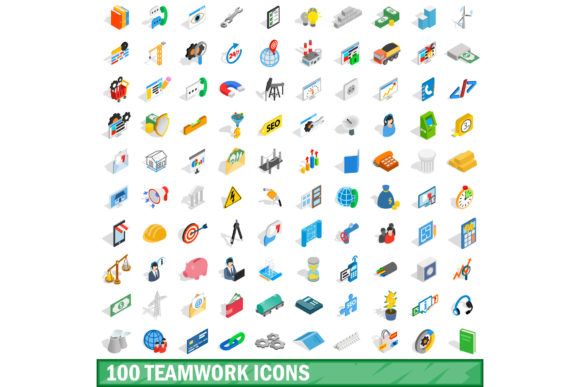
Using the 100 Teamwork Icons Set to Streamline Collaborative Visuals
Visual communication is often the last detail teams consider during a heavy project sprint. You have the strategy mapped out, the tasks assigned, and the deadlines set, but the documentation, presentations, and internal updates lack a cohesive visual thread. Small inconsistencies—a mismatched icon here, a blurry graphic there—chip away at the overall professionalism of a deliverable. The 100 Teamwork Icons Set addresses this exact friction point. It provides a dedicated library that slots directly into your existing workflow, eliminating the need to hunt for disparate visuals under time pressure.
This is not just about having more graphics. It is about having a consistent visual language that reinforces your team’s narrative, reduces communication friction, and speeds up the production of clean, professional assets. Whether you are building a slide deck, structuring a Notion workspace, or designing a client proposal, a cohesive icon set acts as a silent partner in your workflow, keeping your output clear and your process efficient.
Strategic Preparation: Organizing the Set Before You Start
The most impactful use of the 100 Teamwork Icons Set begins before you open a design tool or create a document. Preparation is not glamorous, but it determines how effectively the set integrates into your daily routine. Start by unpacking the collection and categorizing the icons based on the recurring phases of your projects.
Create a folder structure that mirrors your typical workflow. Consider these common categories:
- Communication: Messages, feedback, announcements, and meetings.
- Task Management: To-do lists, checkmarks, priority flags, and deadlines.
- Collaboration: Brainstorming, peer review, shared documents, and teamwork.
- Leadership: Strategy, vision, goals, and recognition.
- Tools & Resources: Software, files, analytics, and assets.
Take a moment to map these categories onto your own project management framework. If you use a platform like Notion, Confluence, or Monday.com, pre-load the icons into your asset library or cloud storage. For design-heavy workflows, such as those in Figma or Adobe XD, import the SVG files directly into your team library. This upfront effort ensures that when you need a specific graphic during a tight production sprint, you are not scrolling through an endless list of generic images. You are selecting from a curated set that already aligns with your process.
Integrating Icons into Active Workflows
Once a project is underway, speed and consistency become critical. The 100 Teamwork Icons Set shines in this phase because it provides a unified visual shorthand that all team members can recognize instantly. Instead of writing a full sentence to label a section, you can pair a strong headline with a relevant icon, allowing viewers to scan and understand the structure in seconds.
Practical Applications for Marketing and Campaign Management
For marketing teams managing a product launch, the icon set can be used to differentiate campaign stages. Use the “strategy” icon for your brief, the “creation” icon for your content calendar, and the “launch” icon for your final checklist. When you present these stages to stakeholders, the visual consistency conveys a level of organization that builds trust. The same set can be used across your social media slides, internal status reports, and the final campaign wrap-up document, creating a seamless brand experience.
Enhancing Educational and Training Materials
Educators and course creators often struggle to make dense information digestible. The icon set can function as a visual roadmap. Assign specific icons to different learning modules. For example, use a “lecture” icon for video content, a “document” icon for reading materials, and a “discussion” icon for group activities. When students navigate the course, these consistent visual cues reduce cognitive load and help them locate resources faster. It is a small UX change that significantly improves the learner’s experience.
Streamlining Internal Communication
Freelancers and small business owners can use the set to structure their client communications. A project proposal becomes clearer when you use icons next to each service phase. A status update email feels more scannable when key action items are paired with a simple icon. This approach does not require advanced design skills. It relies on the disciplined application of a standard library. By keeping the icon style uniform, you create a professional veneer that distinguishes your work from competitors who rely on generic clip art.
Post-Project Audits and Asset Management
A project’s end is not the end of the icon set’s utility. The period immediately following a deliverable is the ideal time to audit how you used the collection. Review your final documents and presentations. Did you use icons consistently, or did you fall back on screenshots or random graphics from the internet? Identifying these gaps helps you plan better for the next project.
Archiving your work with the icon set also creates a reusable template system. If you built a client proposal template using the set, store that template in a shared drive. Next time you pitch a similar service, you can duplicate the template, swap out the text, and maintain full visual consistency without starting from scratch. This practice directly improves your long-term efficiency. The set transitions from being a static resource to a dynamic component of your template library.
Quality control is another consideration at this stage. Check that the icons maintained their resolution across different mediums. If you used the set in a web interface, verify that the SVG files rendered correctly. For print materials, ensure the PNGs were high enough resolution. Documenting these technical nuances for your specific workflow will save you time during the next production cycle.
Optimizing the Interaction with Other Tools and Platforms
A well-designed icon set is only as valuable as its compatibility with your existing tech stack. The 100 Teamwork Icons Set is typically provided in multiple formats, including SVG, PNG, and AI. Understanding where each format fits in your process is essential for smooth integration.
- SVG: Best for web interfaces, UI design, and applications. Vector format ensures infinite scalability. Use this in Figma, Webflow, or directly in HTML code.
- PNG: Best for presentations, internal documents, and platforms that do not support vector uploads. Transparent backgrounds allow for clean placement on colored slides or documents.
- AI (Adobe Illustrator): Best for advanced customization, such as changing stroke weights, colors, or combining icons to create new composite graphics.
For teams using Canva, upload the PNG icons into your brand kit. This centralizes the assets for all team members, ensuring that a social media manager and a proposal writer pull from the same visual library. For developers, integrating SVG icons into a design system or component library ensures that the front-end interface reflects the same visual language used in the product documentation. This cross-platform consistency is the hallmark of a mature workflow.
Long-Term Application and Building a Visual Standard
Sustained use of the icon set requires more than occasional downloads. It requires establishing a simple internal style guide. You do not need a lengthy document. A short page that specifies how the icons should be used will prevent visual drift over time. Decide on a few core rules:
- Color Palette: Should the icons always appear in your brand’s primary color, or can they be used in monochrome? Define the default.
- Context: Are icons allowed to stand alone, or should they always be accompanied by a label? Defining this prevents ambiguity.
- Pairing: Which icons should not be used next to each other to avoid confusion? For example, a “feedback” icon and a “revision” icon might look too similar—decide on one for each specific process.
Entrepreneurs and small business owners will find that this level of standardization pays dividends over time. Every touchpoint—from the website to the onboarding deck to the invoice—benefits from a cohesive look. It builds an unspoken trust with clients, suggesting that if you are organized in your visuals, you are likely organized in your execution. For larger organizations, this same principle scales across departments, ensuring that the engineering team’s presentations align visually with the sales team’s proposals.
The 100 Teamwork Icons Set is a practical tool that performs best when treated as an integral part of your workflow rather than an afterthought. By preparing your library in advance, applying the icons consistently during active projects, auditing their use after completion, and maintaining a simple standard for long-term use, you transform a simple collection of graphics into a reliable productivity asset. It removes the friction of inconsistent visuals and allows you and your team to focus on the substance of the work, knowing that the presentation will be clean, clear, and professional.